

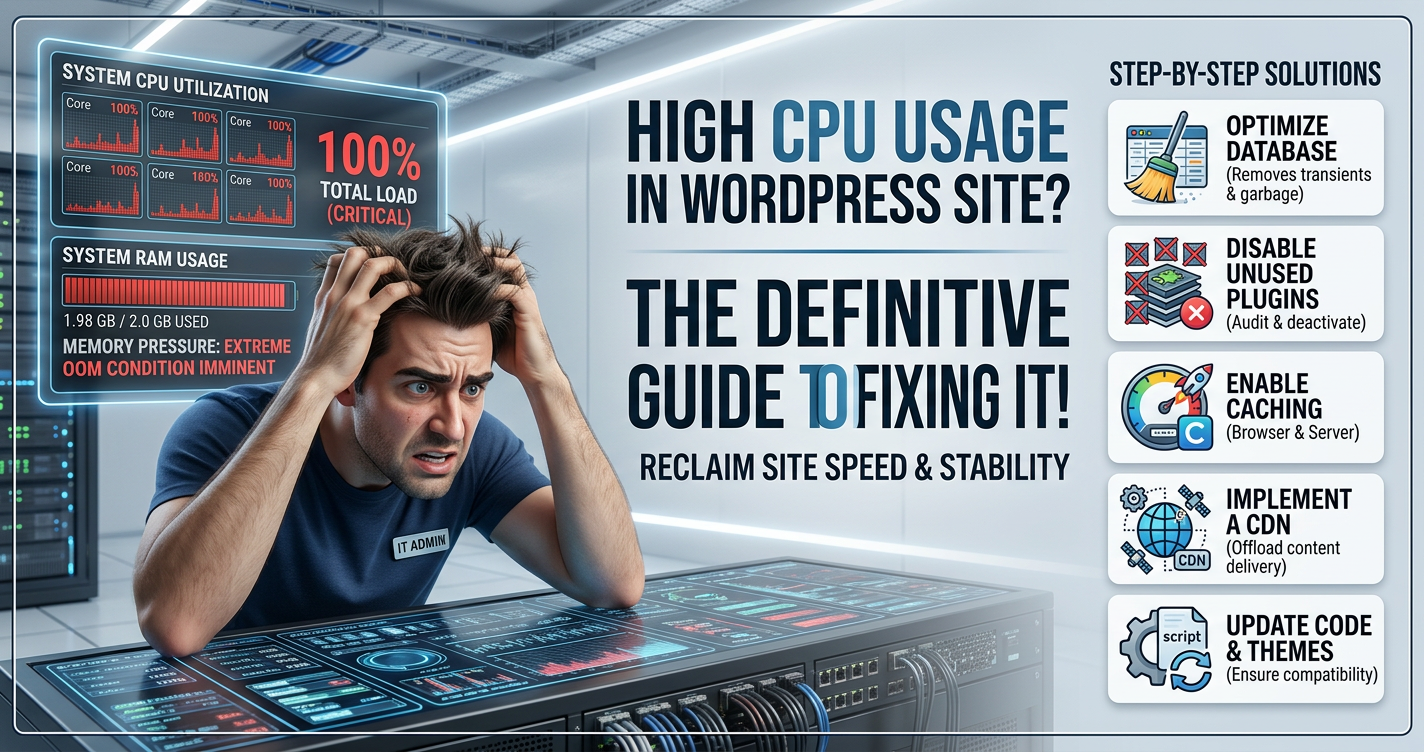
High CPU usage can turn your WordPress site from a high-performing powerhouse into a sluggish mess. Slow page loads, an unresponsive admin panel, and even site crashes are just a few of the consequences. And the stakes are high studies show that sites loading in under 1 second see 3x better conversion rates than those that take 5 seconds.
Unchecked CPU issues not only frustrate users but also harm your SEO rankings and can even lead to inflated hosting costs. So, whether you’re experiencing slow performance due to high CPU usage or just want to proactively prevent it, this guide will show you how to pinpoint and resolve the underlying issues.
Let’s dive into the common causes of high CPU usage in WordPress and practical solutions you can implement to keep your site running smoothly.
Identifying the Top Culprits of High CPU Usage in WordPress
There are several reasons why your WordPress site might be consuming too much CPU. Here are the most common culprits:
- Inefficient or Excessive Plugins: Running multiple plugins that load unnecessary code on every page load can create a cumulative strain on resources.
- Resource-Intensive Theme Functions: Complex themes or those with advanced features can demand a lot of server processing, leading to high CPU usage.
- Unoptimized Database Queries: Poorly optimized or frequently called database queries can result in excessive CPU usage, especially during high traffic periods.
- High Traffic Volumes: More visitors mean more server requests. Without proper optimization, this can overwhelm the CPU.
- Inadequate Caching: Without proper caching, every page load will generate dynamic content from scratch, consuming valuable server resources.
- Resource-Heavy Background Tasks: Tasks like backups, updates, or other scheduled operations can overload your CPU, particularly if not properly scheduled.
- Malware or Security Issues: Unauthorized programs or malicious scripts running on your site can consume CPU resources for harmful activities.
- Outdated WordPress Core, Themes, or Plugins: Older versions often lack performance improvements and can use inefficient methods that strain CPU.
- Improper Server Configuration: Servers with limited resources or poor configuration can throttle performance and CPU usage.
- Large Image Files: Oversized media files require more processing power, especially when there are many of them on a page.
- External Services: Frequent external API calls or social media integrations can add unnecessary load to your server.
Best Practices to Manage High CPU Usage in WordPress
Now that you understand the potential causes, let’s explore how to implement best practices to optimize your WordPress site and reduce CPU load.
1. Keep WordPress Updated
Regular updates are crucial for performance. New updates often come with performance improvements that can directly impact CPU usage. For example, newer WordPress versions may optimize database queries or PHP processes.
- Core Updates: Keep your WordPress core up to date.
- Plugin and Theme Updates: Regularly update your plugins and themes to avoid inefficient code that could be consuming extra CPU resources.
You can control how frequently your site checks for updates. By default, WordPress checks every 12 hours — you can reduce this frequency to once a day or even less for high-traffic sites. Add this snippet to your theme’s functions.php file:
add_filter( 'wp_update_check_interval', function() { return 24 * HOUR_IN_SECONDS; } );
2. Optimize Your WordPress Stack
Using lightweight themes and plugins forms the foundation of a performance-friendly WordPress site. Here are some things to keep in mind:
- Choose Efficient Themes: Opt for clean, minimal themes with optimized code. Avoid overly complex themes that load unnecessary scripts and styles.
- Optimize Plugins: Limit the number of plugins and only keep the ones that are essential for your site’s functionality. Regularly audit plugins, removing unused or redundant ones.
- Implement Caching: Caching is essential to reduce CPU usage. Caching plugins like W3 Total Cache or WP Rocket can help by serving static versions of your pages, reducing the need for repeated dynamic content generation. Alternatively, enable server-level caching if your hosting provider offers this feature.
- Optimize Database: Use tools like WP-Optimize to clean up your WordPress database. Remove unnecessary data such as old post revisions, trashed posts, and spam comments. Regular database optimization can improve query performance and lower CPU usage.
3. Implement Effective Resource Management
Managing how resources are used on your site can drastically reduce CPU load. Here are a few strategies:
- Use a Content Delivery Network (CDN): Offload static content (images, CSS, JavaScript) to a CDN like Cloudflare. This reduces the workload on your server, freeing up CPU resources for dynamic content generation.
- Optimize Images: Compress large images using tools like Imagify or ShortPixel. Large images consume a significant amount of CPU resources, especially when they’re not optimized. Use lazy loading to ensure images are only loaded as they appear on the user’s screen.
- Minify CSS and JavaScript: Use plugins like Autoptimize or WP Rocket to combine and minify CSS and JavaScript files. This reduces the number of HTTP requests and CPU load during page generation.
- Schedule Background Tasks: Prevent CPU spikes during peak traffic hours by scheduling resource-heavy tasks like backups, database optimizations, and updates during off-peak hours. Use WP Crontrol to manage when these tasks are executed.
4. Enhance Security and Monitoring
Security and performance go hand in hand. A secure site ensures that no malicious activity is draining resources, while monitoring tools allow you to spot issues early:
- Regular Malware Scans: Use security plugins like Wordfence or Shield Security to scan for and remove malware.
- Implement a Web Application Firewall (WAF): A WAF can block malicious requests before they even reach your server. Tools like Cloudflare offer free WAF functionality.
- Monitor CPU Usage: Many hosting providers offer CPU usage graphs in their control panels. You can also use server monitoring tools like New Relic to track server health and spot unusual CPU spikes.
5. Optimize Server and Hosting Configurations
If you’re running a resource-intensive site, consider upgrading your hosting:
- Use VPS or Dedicated Hosting: Shared hosting might not be enough for high-traffic sites. A Virtual Private Server (VPS) or dedicated hosting can provide the resources needed to handle higher loads without slowing down your site.
- Optimize PHP Settings: Increase memory limits and processing times in your hosting control panel to prevent timeouts during busy periods.
- Use PHP Caching: Enabling PHP caching (like OPcache) can store precompiled script bytecode in memory, reducing the need for repeated parsing of PHP code.
Conclusion
High CPU usage can significantly degrade the performance of your WordPress site, impacting both user experience and search engine rankings. By identifying the causes of CPU spikes and implementing best practices such as caching, optimizing your database, and managing server resources, you can keep your site running smoothly and efficiently.
Regular updates, optimized plugins, and monitoring are key components of a high-performance WordPress setup. If you follow these strategies, you’ll minimize CPU overloads, boost your site’s speed, and provide a better experience for both users and search engines.