

WordPress cloning is the process of creating an exact copy of your entire WordPress website. It’s like creating a perfect twin of your site with all the same pages, posts, images, and settings.
To Clone a WordPress Site, you can use plugins or manual methods to duplicate your website quickly and safely. Cloning a WordPress site is a practical solution when you need to migrate your website to a new domain, set up a staging environment for testing, or create a backup copy for security. Instead of rebuilding everything from scratch, cloning allows you to duplicate your entire website, including themes, plugins, media files, and database content, while preserving its functionality and design.
When making changes to your website, there’s always a risk of errors or a site breakdown. Without a backup or clone, you might have to start over from scratch. That’s why this article will guide you through methods to clone your WordPress website. Don’t risk a site breakdown! Gotmyhost helps you secure your website. Ready to clone your WordPress site? See the Step-by-Step Cloning Methods below!
Why Would You Clone a WordPress Website?
Cloning your WordPress website is useful for several reasons.
First, cloning makes it simple to switch hosting providers. You can just copy your site exactly as it is and move it to the new host without rebuilding anything.
Second, cloning is great for building a site on your local computer. This lets you work without publishing your site. Or you could copy a live website to your local device in order to experiment with new designs or plugins without hurting your live site.
Third, you can clone a WordPress website to create a staging site. A staging site is a clone of your live website that’s kept online. It lets you test updates or changes before visitors see them. When everything looks good, you push those changes live.
Preparing for the Cloning Process
Before you begin cloning your WordPress site, there are a few steps you should take to ensure a smooth process:
Backup your WordPress site
Creating a backup of your WordPress site is essential before making any changes to your site. This ensures that you have a restore point in case anything goes wrong during the cloning process. There are several backup plugins available for WordPress that make the backup process easy and automated. Choose a reliable backup solution and perform a full backup of your site.
Choose a suitable cloning method
There are different methods available to clone a WordPress site, each with its own advantages and requirements. Consider the following options:
- Manual Cloning: This method involves manually exporting the WordPress database, copying the WordPress files, creating a new database for the clone, and importing the database and files to the new location.
- Using WordPress Plugins: There are various plugins available in the WordPress repository that simplify the cloning process. These plugins allow you to clone your site with just a few clicks.
- Using a Managed WordPress Hosting Service: Some managed WordPress hosting providers offer built-in cloning features. If you’re using such a service, check if they provide a cloning option and follow their documentation or support guidelines.
Manual Cloning
In this section, we’ll guide you through the steps involved in manually cloning a WordPress site.
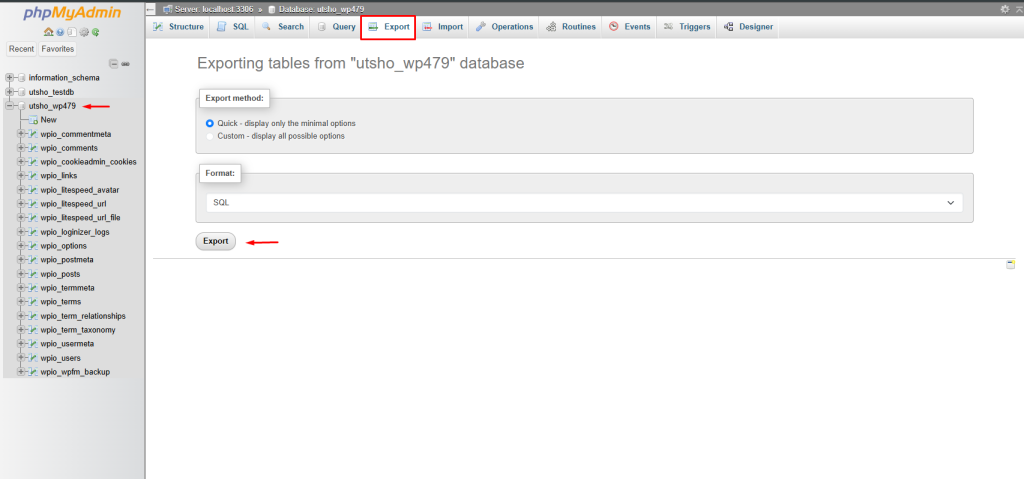
Step 1: Export the WordPress Database
To begin, you need to export the database of your existing WordPress site. This can typically be done through a tool like phpMyAdmin or through the command line. Export the database as an SQL file.
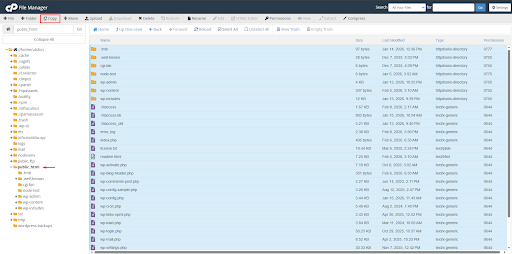
Step 2: Copy the WordPress Files
Next, you’ll need to copy all the files associated with your WordPress site. This includes the WordPress core files, themes, plugins, and any uploaded media files. Use FTP or a file manager provided by your hosting provider to download these files to your local computer.
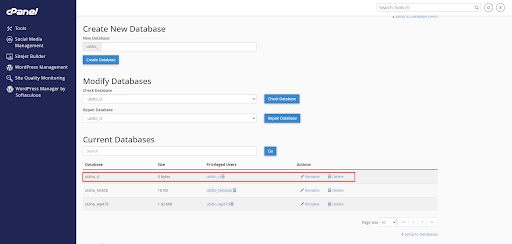
Step 3: Create a New Database for the Clone
In this step, you’ll create a new database for your cloned site. Access your hosting control panel and find the database management section. Create a new database and note down the database name, username, and password.
Step 4: Import the Database and Files to the New Location
Now it’s time to import the exported database and upload the WordPress files to the new location. Import the SQL file into the newly created database using phpMyAdmin or the command line. Then, upload the WordPress files you copied earlier to the root directory of the new location.
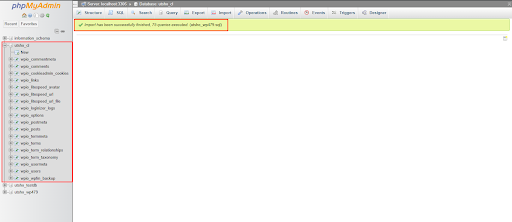
Step 5: Update the Configuration Files
In this final step, you need to update the configuration files to connect the cloned site to the new database. Locate the wp-config.php file in the root directory of the cloned site and open it in a text editor. Update the database details (database name, username, and password) to match the new database you created. Save the changes.
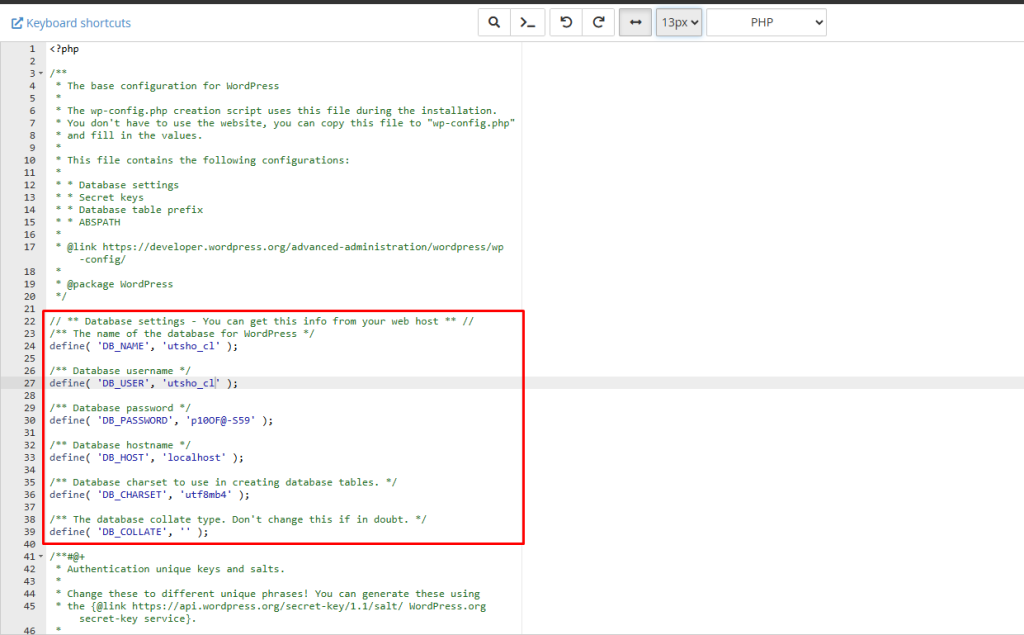
Congratulations! You have successfully cloned your WordPress site manually. Visit the new location in your web browser to verify if the clone is working correctly.
Using WordPress Plugins
If you prefer a simpler and more automated approach, using WordPress plugins to clone your site is a great option. Here’s how you can do it:
Step 1: Install and Activate a Cloning Plugin
Log in to your WordPress dashboard and navigate to the “Plugins” section. Click on “Add New” and search for a cloning plugin like “Duplicator” or “All-in-One WP Migration”. Install and activate the plugin of your choice.
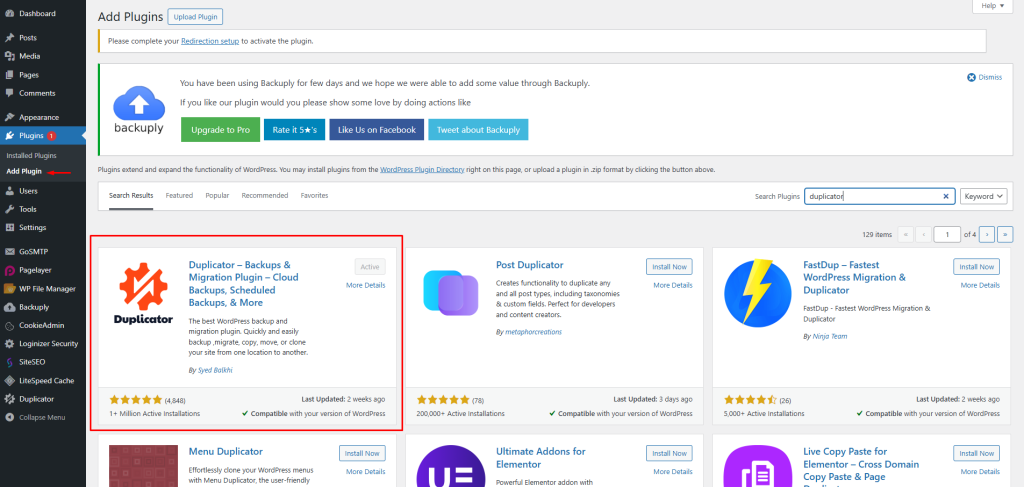
Step 2: Configure the Cloning Plugin
Once the plugin is activated, you’ll find a new menu item related to the plugin in your dashboard. Click on it to access the plugin settings. Configure the plugin according to your requirements, such as specifying the destination for the clone and customizing any advanced options if needed. Make sure to follow the plugin’s documentation for specific instructions on configuring the plugin.
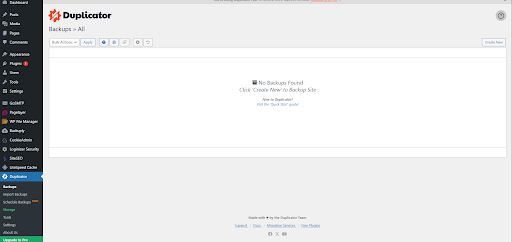
Step 3: Clone the WordPress Site
After configuring the plugin, you’re ready to initiate the cloning process. Depending on the plugin you’re using, you may need to follow different steps. Generally, you’ll find a “Clone” or “Create Clone” button within the plugin’s settings. Click on it to start the cloning process.
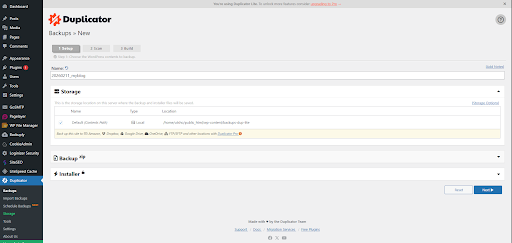
The plugin will handle the cloning process automatically, copying your site’s files, database, and settings to the specified destination. This may take some time, depending on the size of your site.
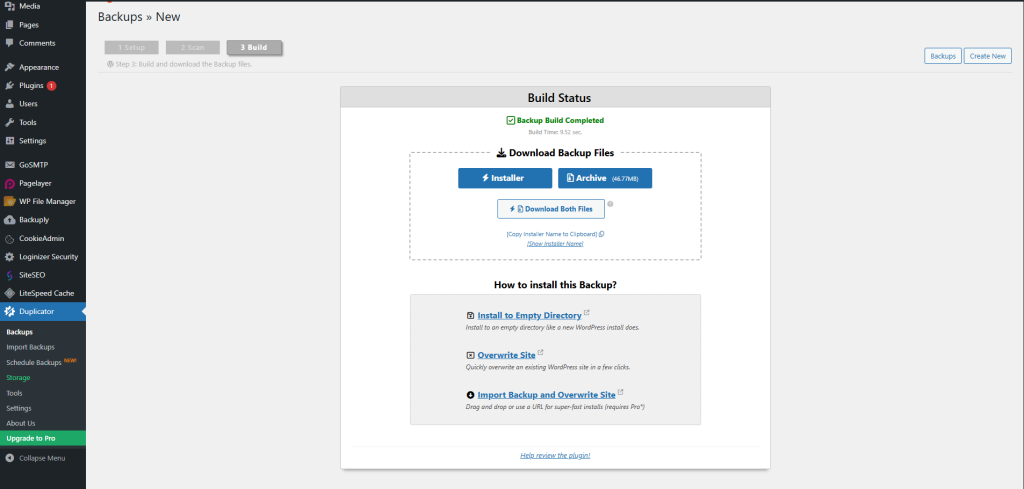
Once the cloning process is complete, the plugin will provide you with a link to access the cloned site. Visit the link to verify if the clone has been successfully created.
Using a Managed WordPress Hosting Service
If you’re using a managed WordPress hosting service, they may offer a built-in cloning feature as part of their platform. Here’s how you can clone your site using such a service:
Step 1: Sign up for a Managed WordPress Hosting Service
If you haven’t already, sign up for a managed WordPress hosting service that provides a cloning feature. There are various providers available, such as WP Engine, Flywheel, or Kinsta. Choose a provider based on your needs and budget.
Step 2: Initiate the Cloning Process
Once you have signed up and logged in to your managed WordPress hosting dashboard, look for the cloning option. It might be listed as “Site Cloning” or “Copy Site” within the dashboard. Click on it to start the cloning process.
Follow the on-screen instructions provided by your hosting provider to clone your site. They may require you to specify the source site and destination for the clone. Provide the necessary details and initiate the cloning process.
Step 3: Review and Test the Cloned Site
After the cloning process is complete, your managed WordPress hosting service will provide you with a link or temporary URL to access the cloned site. Visit the link and thoroughly test the cloned site to ensure everything is functioning correctly.
Troubleshooting Common Issues
During the cloning process, you might encounter some common issues. Here are a few troubleshooting tips to help you resolve them:
- Database connection errors: If you experience database connection errors on the cloned site, double-check the database details in the configuration files or plugin settings. Make sure they match the new database you created for the clone.
- File permission issues: If you notice any file permission errors or missing files on the cloned site, ensure that the file permissions are set correctly. Consult your hosting provider’s documentation or support for guidance on setting proper file permissions.
- Broken links or missing content: If you encounter broken links or missing content on the cloned site, it could be due to incorrect URL references. Use a search and replace tool or a plugin specifically designed for updating URLs to update any references to the old site’s URL to the new site’s URL.
Common Questions People Ask
Here we address frequent concerns about cloning a WordPress site, including questions on technical difficulty and different methods. Read on for answers to common questions about the process, risks, and migration.
Can I clone a WordPress site without technical knowledge?
Yes, you can use WordPress plugins or managed WordPress hosting services that offer simple and user-friendly interfaces for cloning without requiring technical expertise.
What is the difference between manual cloning and using plugins?
Manual cloning involves exporting the database, copying files, creating a new database, and updating configuration files. Using plugins automates most of these steps, simplifying the process.
Are there any risks involved in the cloning process?
While cloning is generally safe, there are some risks involved, such as data loss or compatibility issues. It’s crucial to have backups and thoroughly test the cloned site before making any changes to your live site.
Can I clone a WordPress site to a different hosting provider?
Yes, you can clone a WordPress site to a different hosting provider using manual methods or plugins. However, ensure that the new hosting provider supports WordPress and provides the necessary infrastructure.
Final Thoughts on WordPress Cloning
Cloning a WordPress site can be a valuable process for testing, development, and backup purposes. By following the step-by-step guide and choosing the appropriate method, you can easily clone your WordPress site and create replicas for various purposes. Whether you opt for manual cloning, using plugins, or leveraging managed WordPress hosting services, ensure that you test the cloned site thoroughly and update any necessary configurations to match the new environment. Cloning provides you with the flexibility to experiment, test, and safeguard your website effectively. Ready to get started? Choose your preferred method—manual, plugin, or check Gotmyhost’s built-in features—and create your first WordPress clone today to ensure your site is secure and ready for future updates!