

Website speed is an important factor in user experience, search engine optimization, and overall performance. A slow-loading website can be very frustrating for your users and can affect your search engine optimization efforts. The good news is that if your website is running on a LiteSpeed server and you have the LiteSpeed Cache WordPress plugin installed, you can take advantage of powerful tools to boost your website’s loading speed.
LiteSpeed Cache is more than just a simple caching plugin. This is because LiteSpeed Cache provides a wide range of optimization tools that include page caching, image optimization, database cleaning, CSS/JS minimization, and server caching. When properly configured, these tools can help to greatly reduce the page load times as well as enhance the efficiency with which your website can handle increased traffic.
In the following sections of this post, you will learn the following 5 effective LiteSpeed Cache WordPress plugin tips that can help to enhance the performance of your website. The following tips are useful to both new and experienced users of WordPress. This is because these optimization strategies will help you to achieve the full potential of the LiteSpeed Cache plugin.
Why is LiteSpeed Cache Plugin a Powerful Tool for Site Speed?
LiteSpeed Cache (LSCache) is a highly effective all-in-one optimization plugin intended to boost the speed of a website significantly. This plugin can be used along with the LiteSpeed Web Server. It can be integrated with WordPress to provide the best server-level caching and optimization features.
Unlike other traditional caching plugins, the LiteSpeed Cache WordPress Plugin uses server-level caching. This means the pages are stored on the server itself. This prevents the pages from being reloaded every time a visitor visits the site. This makes the pages load much faster on the visitor’s browser.
The plugin comes with a number of optimization features. Some of the features are:
- Page caching – to make the pages load quickly
- Browser caching to avoid repeated requests to the server
- CSS, JavaScript, or HTML minification
- Image optimization along with lazy loading
- Database optimization to remove unnecessary content
- Content Delivery Network integration to make the site load quickly
Due to the features provided by the LiteSpeed Cache Plugin, it is considered one of the most powerful plugins to boost the performance of a WordPress site.
Enable LiteSpeed Cache for Lightning-Fast Page Caching
Installing the LiteSpeed Cache WordPress Plugin is a fast and easy procedure that can really improve the performance of your website. Once installed, the plugin can enable you to use powerful features for the optimization of your website, which can improve the user experience as well as the loading speed of your website.
The good news is you can install the LiteSpeed Cache Plugin from the WordPress dashboard, which only requires a few minutes to do so. Just follow the simple steps below to install the plugin on your website.
Step 1: Log in to Your WordPress Dashboard
Go to your WordPress admin panel by visiting:
Enter your username and password to access the dashboard.
Step 2: Go to the Plugins Section
From the left sidebar menu:
Plugins → Add New
This will open the WordPress plugin library.
Step 3: Search for LiteSpeed Cache
In the search bar, type: LiteSpeed Cache. You will see the plugin named LiteSpeed Cache developed by LiteSpeed Technologies.
Step 4: Install the Plugin
Click the Install Now button next to the LiteSpeed Cache plugin.
WordPress will automatically download and install the plugin.
Step 5: Activate the Plugin
Once installation is complete, click Activate.
After activation, a new menu called LiteSpeed Cache will appear in your WordPress dashboard.
Step 6: Verify Server Compatibility
For full functionality, your website should run on a LiteSpeed server. If your hosting provider supports LiteSpeed, the plugin will automatically enable server-level caching.
If you’re unsure, you can check it under:
LiteSpeed Cache → Dashboard
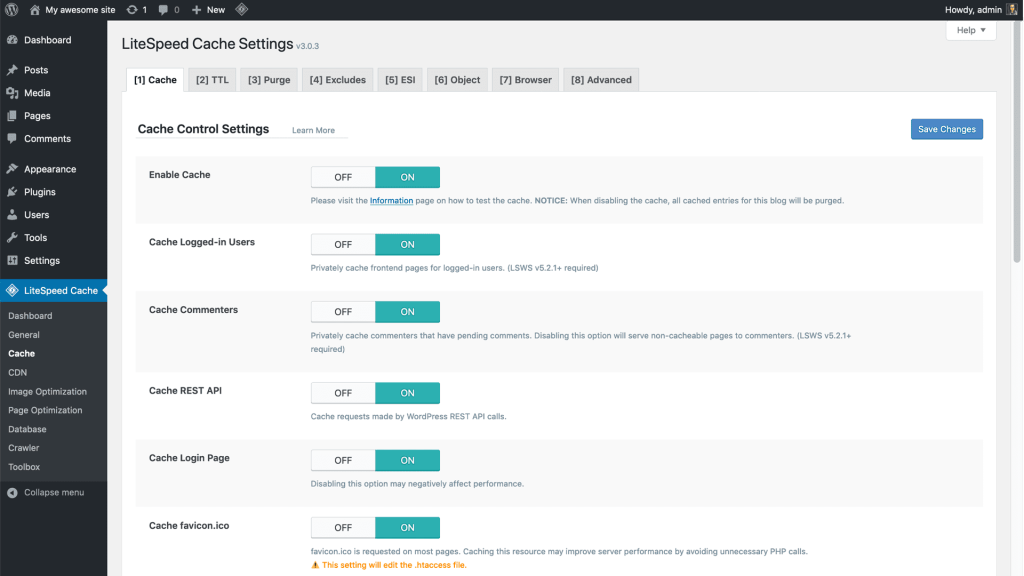
Step 7: Enable Basic Cache Settings
Go to:
LiteSpeed Cache → Cache → Enable Cache
Turn on caching to start improving your site speed.
Once it is installed and configured, the LiteSpeed Cache WordPress plugin can actually reduce loading time and improve your website’s performance.
Activate CSS, JavaScript, and HTML Minification for Faster Loads
Another remarkable feature of the LiteSpeed Cache plugin is minification optimization. This plugin helps remove unnecessary characters, including spaces, comments, and line breaks, from CSS, JavaScript, and HTML files without affecting their functionality. This optimization reduces the file size of websites, resulting in faster loading of websites, which improves the overall performance of websites.
This optimization also reduces the data transfer between the server and the user’s browser. This means that websites will be displayed faster, especially for users who are using slower internet connections. In addition, faster loading of websites improves SEO rankings, making minification optimization very important for optimizing websites’ performance.
Enable the following option :
- CSS Minify
- JS Minify
- HTML Minify
Note: CSS Combine and JS Combine are optional.
These settings allow your website’s code to be processed by the browser faster, which will greatly improve your website’s speed.
Use LiteSpeed Image Optimization to Dramatically Reduce Page Size
The most significant part of the size of a webpage is usually the images. In addition, if images are large or not compressed, they may affect the loading speed of a website.
The LiteSpeed Cache WordPress plugin includes a built-in image optimization tool that compresses images without significantly reducing quality. It can also convert images to WebP format, which is much smaller than traditional formats like JPEG or PNG.
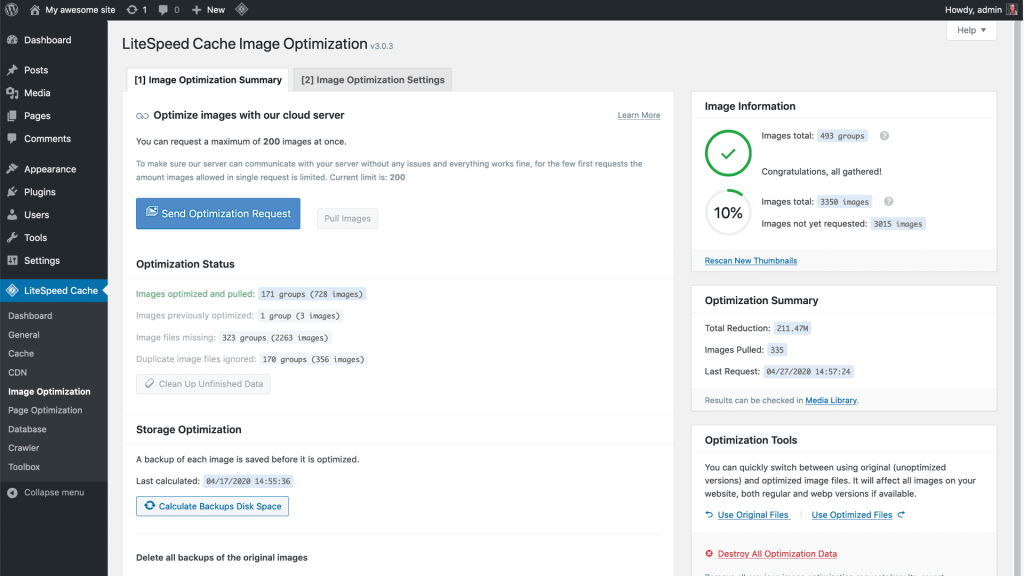
To optimize images:
- Go to LiteSpeed Cache → Image Optimization
- Click Send Optimization Request
- Enable Auto Request Cron
- Enable WebP Image Replacement
These optimizations reduce page weight and improve loading speed across both desktop and mobile devices.
Enable Browser Cache and Object Cache for Maximum Performance
One of the most powerful methods for minimizing server load and increasing website performance is caching. Though caching a page improves the speed of serving a page, browser caching and object caching are additional measures that further optimize website speed.
Browser Cache
Browser cache is a feature that stores resources such as images, CSS, JS, and fonts locally on a visitor’s device. The next time a visitor visits your site, these resources do not need to be downloaded again. Instead, they are fetched directly from the cache in the visitor’s browser, reducing page loading time significantly.
This is particularly advantageous for repeat visitors since the webpage will load almost instantaneously after the initial visit. To enable browser caching for LiteSpeed Cache:
- Navigate to LiteSpeed Cache > Cache
- Locate Browser Cache
- Enable Browser Cache by toggling the button to ON
Once enabled, LiteSpeed automatically sets appropriate cache-control headers, allowing browsers to store static resources efficiently.
Object Cache
Although the user’s browser cache is client-side, the object cache is server-side. WordPress makes many database queries to fetch posts, settings, etc. This can cause a slowdown if the site gets a lot of traffic or uses a lot of plugins.
Object Cache stores database queries that are often used in memory, so that WordPress can access them quickly, without needing to query the database every time. LiteSpeed Cache supports Redis and Memcached, which are both powerful memory-based caches that are often available with modern hosting providers.
To enable object caching:
- Navigate to LiteSpeed Cache → Cache → Object
- Enable Object Cache
- Select your caching method (Redis or Memcached)
- Save changes
When configured properly, object caching can greatly improve performance for:
- Large WordPress websites
- WooCommerce stores
- Membership websites
- High-traffic blogs
Combining page caching, browser caching, and object caching creates a powerful performance optimization stack that helps deliver faster pages and a smoother user experience.
Use LiteSpeed CDN Integration to Supercharge Global Site Speed
If you are allowing visitors from different parts of the globe, the loading speed of your website can be affected depending on the distance of the visitors from your server. At such a point, the value of a CDN is realized.
A CDN is a network of servers located all over the globe, which stores a cached version of your website’s static assets like images, CSS files, JavaScript files, etc. When a visitor requests to view your website, the CDN will serve them the cached version of your website’s assets from the server that is closest to their physical location.
Popular CDN options supported by LiteSpeed include:
- QUIC.cloud CDN
- Cloudflare
- KeyCDN
- StackPath
Among these, QUIC.cloud is particularly powerful because it is designed specifically for LiteSpeed servers and offers additional performance features such as edge caching and image optimization.
How to Enable CDN in LiteSpeed Cache
Follow these steps to configure CDN integration:
- Go to LiteSpeed Cache → CDN
- Enable the CDN option
- Enter your CDN URL or connect your QUIC.cloud account
- Save the settings
After activation, your static files will be served through the CDN network instead of your main server. This results in several performance benefits:
- Faster loading times for international visitors
- Reduced server load on your hosting environment
- Improved website stability during traffic spikes
- Better Core Web Vitals scores
For websites targeting a global audience, combining LiteSpeed Cache with a CDN can dramatically enhance both speed and scalability.

Bonus Tip: Enable Lazy Loading to Instantly Improve Page Load Speed
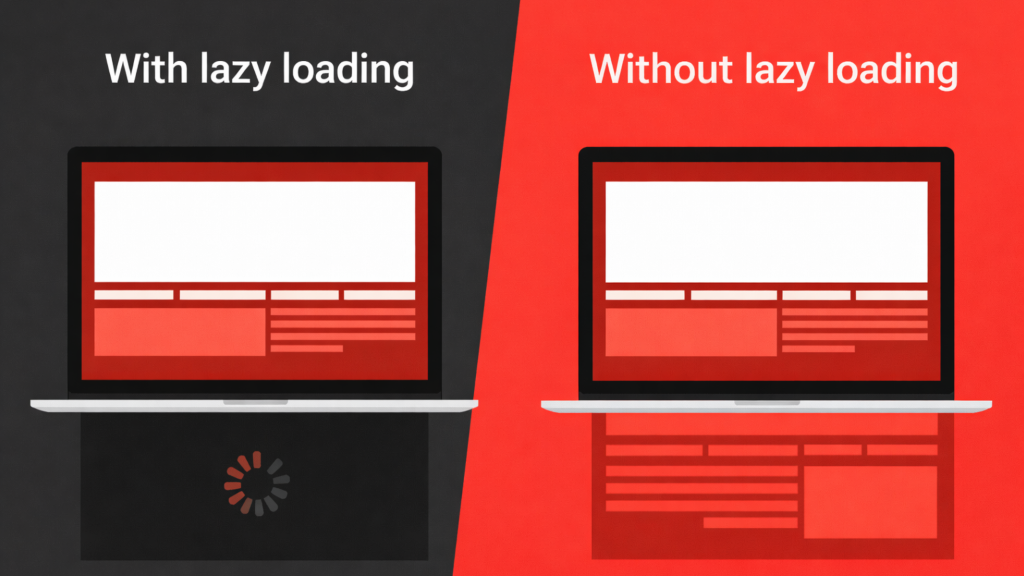
One of the most powerful but least utilized performance options within the LiteSpeed Cache WordPress plugin is the “Lazy Loading” feature. The feature is designed to boost webpage loading speeds by only loading images, videos, and other media when they are actually needed.
Typically, when a webpage is loaded, the web browser attempts to load all images and media files on the webpage at the same time. This includes images that are located well below the top of the webpage or “below the fold.” This results in an increased load time for the webpage, particularly for webpages that have multiple images or videos embedded.
How to Enable Lazy Loading in LiteSpeed Cache
The “lazy loading” feature helps to resolve the issue by only loading images when the webpage is scrolled to that point. Instead of loading all media files at once, the webpage is loaded dynamically as the images are brought into view within the webpage visitor’s screen or “viewport.”
You can enable Lazy Loading directly from the LiteSpeed Cache settings in just a few steps:
- Go to LiteSpeed Cache → Page Optimization
- Scroll down to the Media Settings section
- Enable the following options:
- Lazy Load Images
- Lazy Load Iframes
- Responsive Placeholder (optional but recommended)
- Click Save Changes
Once activated, LiteSpeed Cache will automatically delay the loading of images and media until they are needed. This reduces the initial page weight and helps your pages load noticeably faster.
Read more: 5 Best WordPress Security Plugins in 2026 (Free & Paid)
LiteSpeed Cache Tips & Quick Answers
LiteSpeed Cache Tips & Quick Answers is a useful guide that offers tips and quick answers on how website owners can make the most out of the LiteSpeed Cache plugin in terms of optimization. This guide offers useful tips for website owners, whether beginner or advanced, on how to speed up their website, fix problems, and make the most out of the plugin.
What is LiteSpeed Cache In WordPress?
LiteSpeed Cache is a high-performance optimization plugin developed to enhance the speed of a WordPress site. This plugin offers server-level caching, image optimization, CSS/JS minification, database cleaning, and CDN integration to boost the speed of a site.
Is LiteSpeed Cache Better Than Other WordPress Caching Plugins?
LiteSpeed Cache has a better chance of beating most other caching plugins since it employs a server-level caching method rather than a PHP-based caching method. This means that the web server will be able to load the cached pages faster compared to others. Nevertheless, the full functionality of LiteSpeed Cache is only achievable if the hosting environment has LiteSpeed Web Server.
Do I Need A LiteSpeed Server To Use the LiteSpeed Cache Plugin?
While you can install the LiteSpeed Cache plugin on any WordPress site, server-level page caching requires a LiteSpeed server. You can still utilize certain optimization features even if your hosting provider does not use LiteSpeed. You won’t be able to utilize all of LiteSpeed’s caching features, though, which is one of its key advantages.
Is LiteSpeed Cache Free To Use?
Yes, the LiteSpeed Cache WordPress plugin is free and can be found in the official WordPress plugin directory. Most of the core features that LiteSpeed offers for free can be utilized for free. However, some premium services such as QUIC.cloud CDN services might have a usage-based pricing model.
Key Takeaways for Using LiteSpeed Cache Effectively
Improving your website’s speed is very important if you are looking to deliver a better user experience, minimize your website’s bounce rate, and rank higher on search engine result pages. The LiteSpeed Cache WordPress plugin is a powerful plugin that provides you with a variety of tools that can be used for optimizing your website’s performance, particularly if you are using LiteSpeed servers.
By applying the five proven tips provided in this guide, including page caching, CSS and JavaScript minification, image optimization, browser caching, object caching, and integrating a CDN into your WordPress website, you can easily improve your website’s loading speed. These tips not only improve your website’s performance but also contribute to enhanced Core Web Vitals, SEO performance, and increased user engagement.
The good news is that you do not need advanced technical skills to configure these features, as most of them are easily accessible through your LiteSpeed Cache plugin. With proper configuration, you can easily transform your WordPress website into a fast, efficient, and scalable platform that offers users a smooth browsing experience regardless of their location in the world.
Start applying these LiteSpeed Cache optimization techniques today and take the first step toward building a faster and more powerful website.
Don’t let a slow website hold you back. Supercharge your performance with LiteSpeed-powered hosting from Gotmyhost and give your visitors the lightning-fast experience they deserve!