

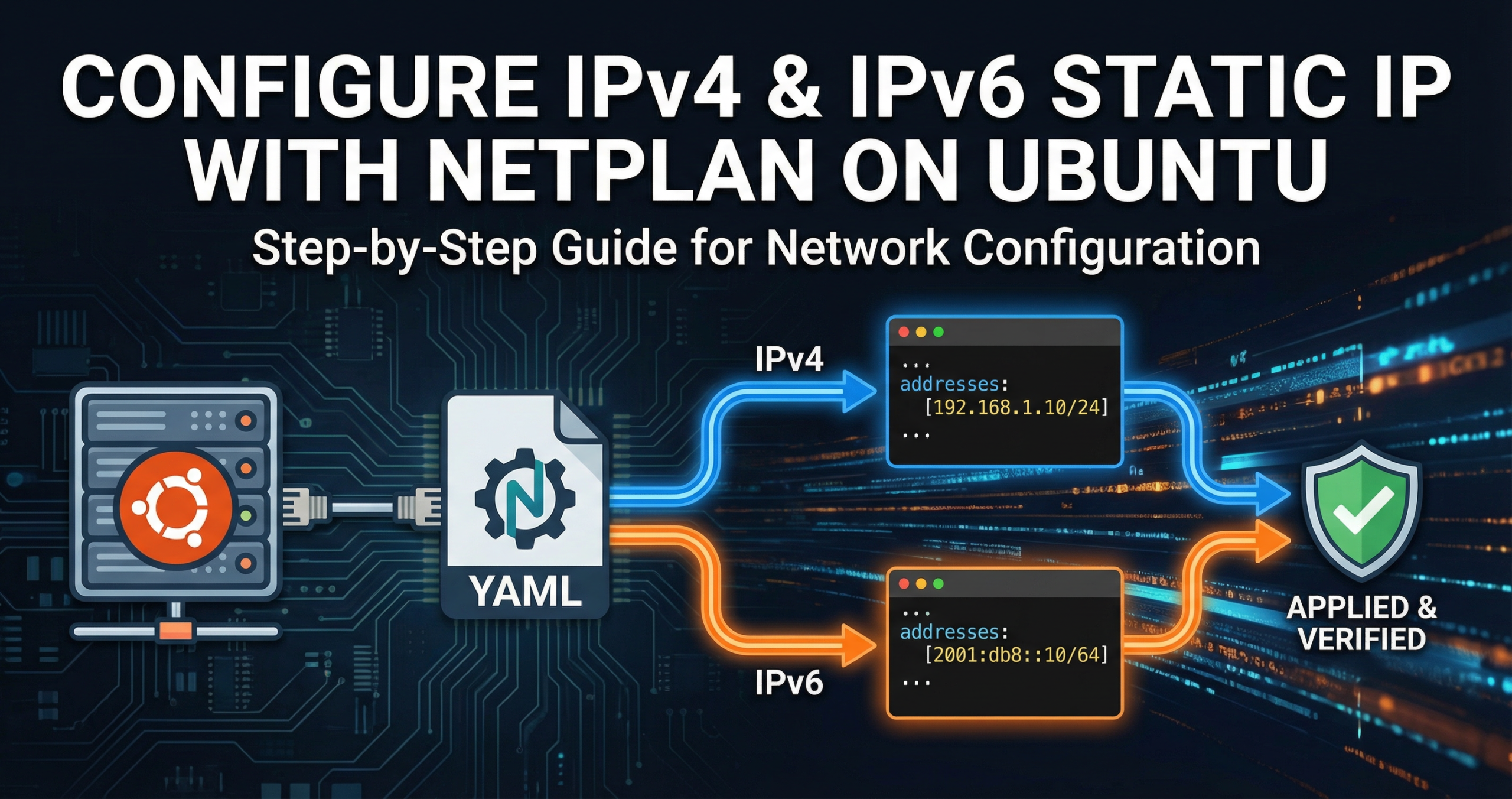
Configuring a static IP address on your Ubuntu server is essential for stable access, predictable DNS records, and reliable remote management. Ubuntu now uses Netplan to manage network settings, which makes it straightforward to define both IPv4 and IPv6 static addresses in a single YAML file.
This guide walks you through:
- Finding your network interface name
- Creating a Netplan configuration for static IPv4 and IPv6
- Applying and verifying the configuration
- Common troubleshooting tips
Prerequisites
- Ubuntu 18.04, 20.04, 22.04 or later (Netplan enabled by default)
- Root or sudo access
- Basic familiarity with using the terminal
Step 1: Identify Your Network Interface Name
You first need to know which network interface you will configure (for example: eth0, ens160, enp0s3, ens3, etc.).
Run:
Baship link show
You’ll see output similar to:
text1: lo: <LOOPBACK,UP,LOWER_UP> mtu 65536 qdisc noqueue state UNKNOWN mode DEFAULT group default
    link/loopback 00:00:00:00:00:00 brd 00:00:00:00:00:00
2: ens160: <BROADCAST,MULTICAST,UP,LOWER_UP> mtu 1500 qdisc fq_codel state UP mode DEFAULT group default
    link/ether 00:1a:4b:16:01:59 brd ff:ff:ff:ff:ff:ff
- Ignore
lo(the loopback interface). - Note the real network interface, such as
ens160orenp0s3.
Alternatively:
Bashls /sys/class/net/
Output might look like:
textens160 lo
In the rest of this guide, we’ll use ens160 as an example. Replace it with your actual interface name.
Step 2: Back Up Your Existing Netplan Configuration
Netplan configuration files live in /etc/netplan/. Before editing anything, create a backup.
List existing configs:
Bashls /etc/netplan/
Example:
text00-installer-config.yaml
Back it up:
Bashsudo cp /etc/netplan/00-installer-config.yaml /etc/netplan/00-installer-config.yaml.bak
If you have a different filename, adjust accordingly.
Step 3: Create or Edit the Netplan YAML File
You can either edit the existing file or create a new one, such as 01-netcfg.yaml:
Bashsudo nano /etc/netplan/01-netcfg.yaml
Important: YAML is indentation-sensitive. Use spaces (not tabs) and maintain correct structure.
Below is a generic example of configuring both static IPv4 and IPv6 addresses for a single interface:
YAMLnetwork:
  version: 2
  renderer: networkd
  ethernets:
    ens160:
      dhcp4: false
      dhcp6: false
      addresses:
        - 192.168.1.100/24
        - 2001:db8:abcd:1::10/64
      routes:
        - to: 0.0.0.0/0
          via: 192.168.1.1
        - to: ::/0
          via: 2001:db8:abcd:1::1
          on-link: true
      nameservers:
        addresses:
          - 8.8.8.8
          - 8.8.4.4
          - 2001:4860:4860::8888
          - 2001:4860:4860::8844
Replace the placeholders with your own values:
ens160
→ Replace with your actual interface name (e.g.eth0,enp0s3).192.168.1.100/24
→ Your desired IPv4 address and subnet mask in CIDR notation.
Example:10.0.0.50/24,172.16.5.20/24.192.168.1.1
→ Your IPv4 gateway (router IP in that network).2001:db8:abcd:1::10/64
→ Your IPv6 address and prefix length.2001:db8::/32is documentation space—replace with your real IPv6 block from your provider.2001:db8:abcd:1::1
→ Your IPv6 gateway.- Nameservers:
You can use public DNS servers (Google DNS, Cloudflare, etc.) or your ISP’s DNS.
Step 4: Validate and Apply the Netplan Configuration
Option 1: Safely test with rollback (recommended)
Bashsudo netplan try
This will:
- Apply the new network settings temporarily.
- Start a countdown (usually 120 seconds).
- If you confirm within the time limit, the configuration is kept.
- If you lose connectivity and cannot confirm, the system will automatically revert to the previous working config.
This is especially useful for remote servers.
Option 2: Apply changes directly
If you’re at the console or confident in the settings:
Bashsudo netplan apply
If there is a syntax or configuration error, Netplan will display messages to help you debug.
Step 5: Verify IPv4 and IPv6 Configuration
Check IP addresses
Baship addr show
You should see your configured addresses under the interface:
text2: ens160: ...
    inet 192.168.1.100/24 brd 192.168.1.255 scope global ens160
    inet6 2001:db8:abcd:1::10/64 scope global
Check routing
Baship route show
Look for the default IPv4 route:
textdefault via 192.168.1.1 dev ens160
For IPv6:
Baship -6 route show
You should see:
textdefault via 2001:db8:abcd:1::1 dev ens160 proto static metric 1024
Test connectivity
IPv4:
Bashping -c 4 8.8.8.8
IPv6:
Bashping -6 -c 4 2001:4860:4860::8888
DNS resolution test:
Bashping -c 4 google.com
If all three work, your configuration is successful.
Common Issues and Troubleshooting
1. YAML syntax errors
Symptoms:
netplan applyfails- Error like:
Error in network definition: …orinvalid YAML
Check:
- Indentation is consistent (2 spaces per level is common).
- No tab characters.
- Colons
:are followed by a space. - Lists use
-properly.
Validate your YAML with:
Bashsudo netplan --debug apply
This prints more detailed logs.
2. Wrong interface name
If you configure eth0 but your server uses ens160, it will not work.
Re-check interface names with:
Baship link show
ls /sys/class/net/
Update the ethernets: section accordingly.
3. Conflicts with cloud-init or previous tools
On some cloud images, cloud-init may manage networking.
- Check
/etc/netplan/for cloud-init-generated files such as50-cloud-init.yaml. - Either:
- Adjust that file, or
- Disable network management in cloud-init (only if you know what you’re doing).
4. IPv6 routing but no connectivity
If ping -6 does not work:
- Confirm you used the correct IPv6 gateway from your hosting provider.
- Some providers require a link-local IPv6 gateway (
fe80::…) withscope link. - Check your provider’s documentation for exact IPv6 settings.
How to Switch Back to DHCP (Optional)
If you later want the interface to use DHCP again:
YAMLnetwork:
  version: 2
  renderer: networkd
  ethernets:
    ens160:
      dhcp4: true
      dhcp6: true
Then:
Bashsudo netplan apply
Security Tips After Setting a Static IP
Once your server has a fixed IP:
- Enable a firewall (for example, UFW): Bash
sudo ufw allow OpenSSH sudo ufw enable - Keep the system updated: Bash
sudo apt update && sudo apt upgrade -y - Restrict access to management ports (SSH, RDP, control panels) from trusted IPs only when possible.
Conclusion
Using Netplan on Ubuntu makes it easy to define static IPv4 and IPv6 addresses in a predictable, repeatable way. With a stable IP configuration, you gain:
- Reliable remote access
- Easier DNS and SSL/TLS management
- Better control over firewall and security policies
If you’re looking for reliable and secure server hosting with static IP options, visit:
You can use this guide as a reference for configuring your Ubuntu servers there or on any other platform.