


If WordPress were a living entity, the .htaccess file would be its heart. Though hidden and silent, this single configuration file controls all site security and redirects. As a vital component for any WordPress setup running on an Apache server, it resides in your root directory and manages permalink settings and security policies without touching core files.
Configuration requires awareness, as changing one script can either fix or instantly break the entire site. Every professional has faced the panic: “What if my site crashes?” This file is your website’s control room—essential for managing URL rewriting, boosting speed, enabling hotlink protection, and forcing HTTPS. This power means you must proceed with informed caution. Don’t let fear prevent you from optimizing your site.
This comprehensive guide provides the exact, safe steps for locating, creating, and editing the .htaccess file. Ready to master your website’s security and performance? Let’s walk through the steps.
What Is the WordPress .htaccess File?
The .htaccess (Hypertext Access) file is one of the most powerful and vital configuration files in a WordPress setup running on an Apache server. This config file, present in the root directory of your WordPress installation, allows you to control the way your website functions without ever having to touch any core files.
The .htaccess file is used by WordPress by default for managing permalink settings and redirects. However, it does not end there. It is the control room of your website, where you can turn features on or off, implement security policies, manage redirects, optimize performance, and control server settings on a per-directory basis. It essentially gives you advanced control while maintaining a clean and secure core installation.
While a basic static website might not always require an .htaccess file, for a dynamic CMS like WordPress, it is absolutely essential. The WordPress platform uses this configuration file to manage URL rewriting, navigation, and URL handling. Whether you want to enhance your security settings, boost loading speed, or set up custom configurations, the .htaccess file gives you complete flexibility.
Here are some examples of the goals you can achieve :
- Enable hotlink protection for a website
- Does redirecting for URLs
- Force HTTPS redirection.
- Secure the directory containing the .htaccess.
- Show custom error pages, such as 403 and 404 pages.
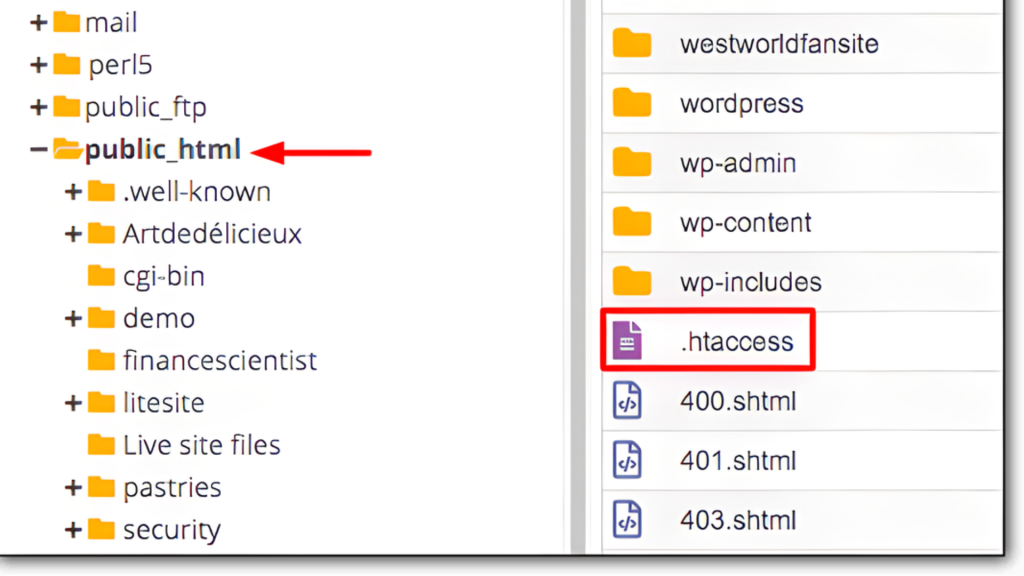
How to Locate the .htaccess File?
You will typically find the .htaccess file inside your website’s root directory, which is the main folder where all your WordPress files are stored, usually named as public_html or www on most Apache servers.
When WordPress is installed on an Apache Web Server, the .htaccess file is automatically generated and placed in this root location to manage permalinks, redirects, and server-level configurations.
However, because this file plays a critical role in your site’s security and functionality, it is hidden by default to prevent unauthorized access or accidental modifications.
The following methods will help you through the steps of locating your WordPress site’s .htaccess file in CPanel:
Method 1: Using cPanel File Manager
Editing a WordPress .htaccess file using cPanel is not too difficult since this software has a file manager built in. Just remember that the text editor that comes with this file manager is very basic. We recommend using an FTP client if possible.
Here are the steps to locate the .htaccess file via cPanel:
- Log in to your cPanel account
- Open the File Manager from the dashboard
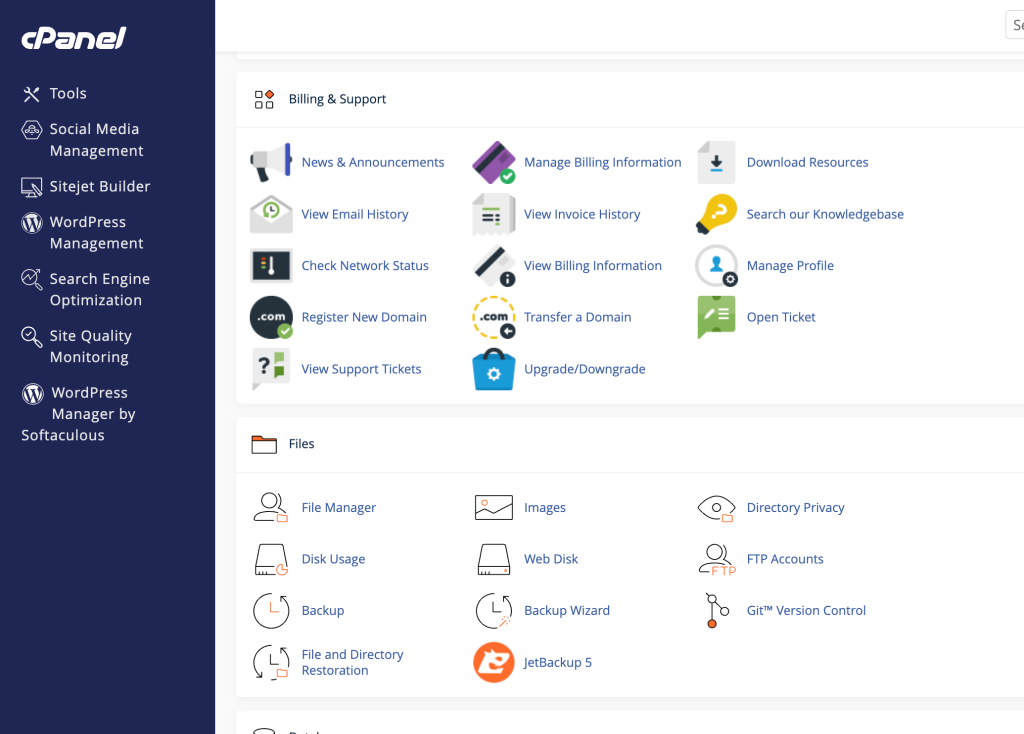
- Navigate to the public_html (or www) root directory
- Click Settings and enable “Show Hidden Files (dotfiles).”
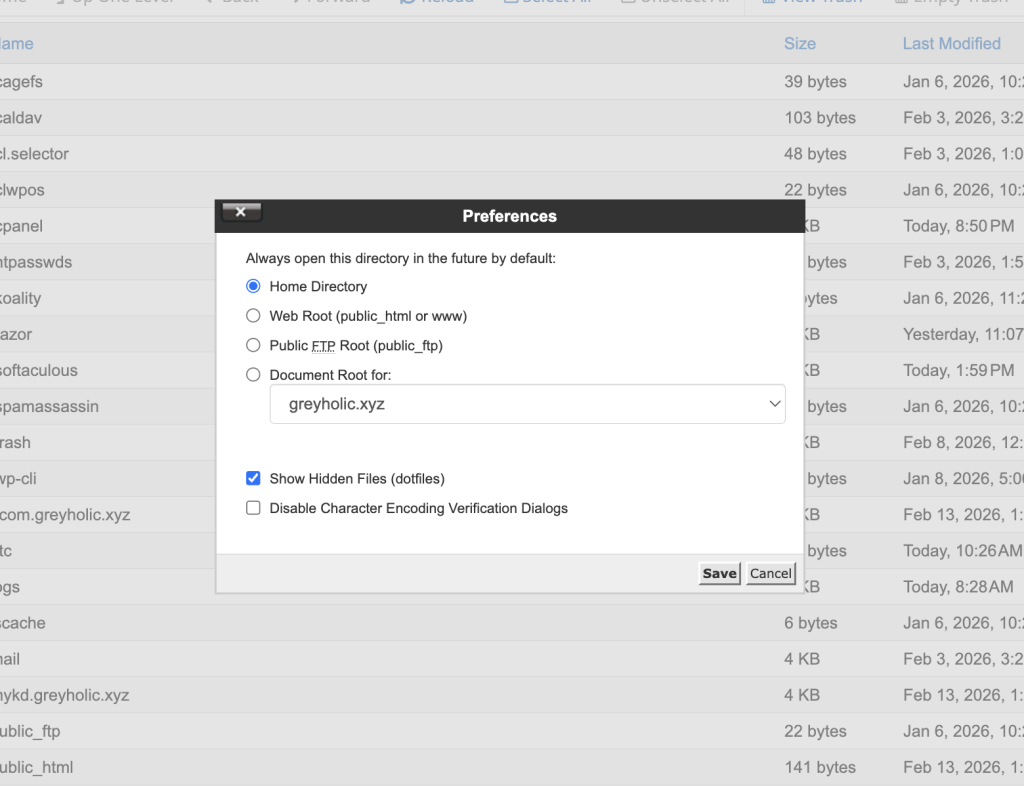
- Refresh the folder to locate the .htaccess file
- Right-click and select Edit (create a backup before making changes)
Method 2: Using FTP (FileZilla)
The best way to access your .htaccess file is through an FTP client. FTP clients are often more accessible than file managers in hosting control panels. In addition, FTP clients give you more power when working with your site’s directories and files.
It’s your choice what FTP client you want to use. However, you may want to consider using FileZilla, an open-source FTP client, especially if you’re new to FTP.
Here are the steps to locate the .htaccess file via FileZilla:
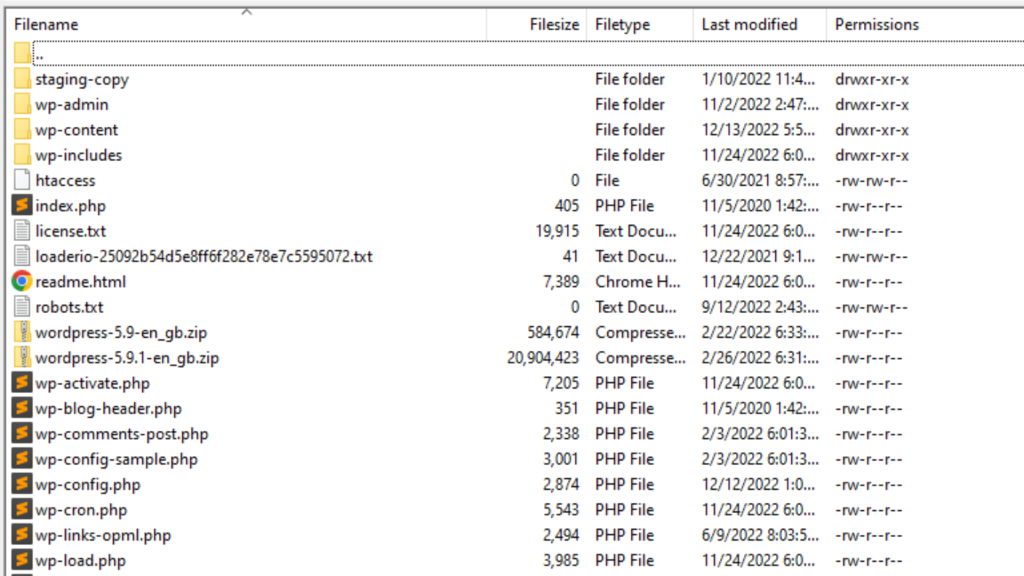
- Connect to your server using an FTP client (such as FileZilla) with your hosting credentials
- Navigate to your WordPress root directory (commonly public_html or www)
- Enable the option to show hidden files (dotfiles) in your FTP client settings to view the .htaccess file
Method 3: Using A WordPress Plugin
If you don’t want to use an FTP client or cPanel to access the .htaccess file, some plugins provide this functionality from the WordPress dashboard. One example is the htaccess File Editor by WebFactory. This plugin adds a new WP htaccess Editor tab to the dashboard. From here, you can use a basic text editor that works only with .htaccess.
How to Create a .htaccess File in WordPress?
The .htaccess file may not always show up in your directory listing, as it is commonly hidden by default or may not have been created in your server environment yet. In most cases, you will have to create the .htaccess file manually in order to set up basic configurations for your server. If the file is not showing up, you can make sure that hidden files are allowed to be viewed in your file manager or FTP client. If the file is not there, you can simply create a new .htaccess file and upload it to the root directory of your website.
Here are the steps to create an .htaccess file manually:
- Open File Manager or FTP
- Create a new file
- Name it .htaccess
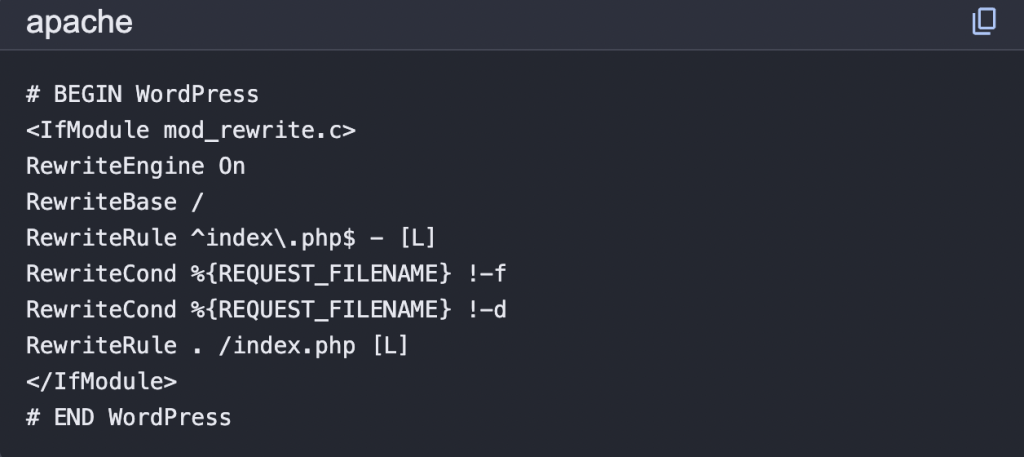
- Add default WordPress code
How to Edit the .htaccess File Safely
Editing your .htaccess file requires precision, as a single mistake can result in your website showing errors or temporarily being unavailable. The .htaccess file is directly responsible for important server operations like redirects, security settings, and URL formats. Therefore, it is important to apply extreme caution when editing this file.
Always Back Up First
Before you begin editing your .htaccess file, it is important to make a complete backup of the original file. This will enable you to revert to the original file in case something goes wrong during the editing process. A backup file is your insurance policy against any issues that may occur.
Use A Plain Text Editor
It is always important to use a trusted text editor like Notepad, Notepad++, or VS Code to edit your .htaccess file. Never use a word processing software like Microsoft Word, as it may introduce hidden characters that can cause the file to malfunction.
Save And Test Immediately
Once you have saved your changes, you can upload the edited file (if you made changes locally) and test your website right away. This will enable you to identify any problems and correct them before they affect your website visitors or search engine rankings.
Let’s Take A Look At What Purpose Is Served By The .htaccess File
The .htaccess file is a configuration file that is used on Apache-based web servers to control and manage how a website behaves at a directory level. Using this file, developers can change server settings without having to edit the main server configuration files. The .htaccess file is particularly useful when using shared hosting services. Using this file, developers can achieve various tasks, such as rewriting URLs to create clean URLs, redirecting users from one page or domain to another, creating custom error pages, controlling access to files or directories, and improving security by restricting unauthorized users or disabling directory browsing.
The following table provides the purpose and impact it has on a website :
| Purpose | Impact |
| Redirect HTTP to HTTPS | Security |
| Block IPs | Protection |
| Customize Upload Size | Flexibility |
| Custom Error Pages | Accessibility |
Read more: WordPress Security Guide: 15 Essential Protection Tips
Everything You Need to Know About The WordPress .htaccess File
The .htaccess file for WordPress is an important configuration file used by the Apache server to define how a WordPress website functions, especially in terms of URL structure and server configuration. This file is particularly important in enabling pretty permalinks, which are used by WordPress to convert the default query string URL structure into a more user-friendly format. Apart from this, the .htaccess file can be used for various functions, such as implementing redirects, enhancing website security by controlling access to certain files, disabling directory listing, caching, and compressing files for improved website performance.
What Will Happen If The .htaccess File Is Deleted?
If the .htaccess file is deleted, your WordPress site may lose its custom permalink settings, leading to broken links or 404 errors. But this is not a permanent problem. WordPress will automatically generate a new .htaccess file when you visit Settings > Permalinks and click “Save Changes.”
Does Every Server Use an .htaccess File?
No, the .htaccess file is mainly used on Apache servers. If your site is hosted on Nginx, your server does not use .htaccess files. Instead, they are managed through the main server configuration file. It is crucial to understand your hosting setup before attempting to edit or create an .htaccess file.
Can WordPress Plugins Edit The .htaccess File?
Yes, many SEO and security plugins can automatically edit the .htaccess file. For instance, plugins can add redirect rules, caching rules, or security rules. Although this is convenient, it is still important to check the changes and maintain backups to avoid conflicts or unexpected errors.
Why Can’t I See The .htaccess File?
The .htaccess file is hidden by default because it starts with a dot (.), which makes it a system file. To view it, you need to enable the “Show Hidden Files” option in your hosting file manager or FTP client. Once enabled, the file should appear in your root directory if it exists.
Is It Safe To Edit The .htaccess File Manually?
Yes, but only if you do it carefully. Even a small syntax error can cause your entire site to display a server error. Always create a backup before editing, use a plain text editor, and test your website immediately after making changes.
Can A Faulty .htaccess File Slow Down My Website?
Yes, poorly written or too many rules in the .htaccess file can impact performance. Too many unnecessary redirects, complex rules, or duplicate entries can lead to increased server processing time. Maintaining a clean, optimized, and organized .htaccess file ensures fast loading times and excellent performance.
Mastering the WordPress .htaccess File Management
The WordPress .htaccess file might seem small, but its impact is massive. Its power in terms of your website’s performance, security, and functionality is actually very strong. Once you learn how to access, configure, and edit the .htaccess file properly, many problems in WordPress become much easier to solve.
By mastering how to control the .htaccess file once, you will be able to develop long-term confidence in your ability to manage your WordPress environment. From solving redirects and SEO to enhancing site security, this single file is very important to your website’s maintenance. With the proper knowledge and care, WordPress will become much smoother, more predictable, and more comfortable to work with. To ensure your perfectly optimized WordPress site runs on a foundation built for speed and security, trust your hosting to the experts.
Ready to experience maximum uptime and performance? Explore Gotmyhost’s high-performance hosting solutions today and secure your 10/10 tech solution experience.