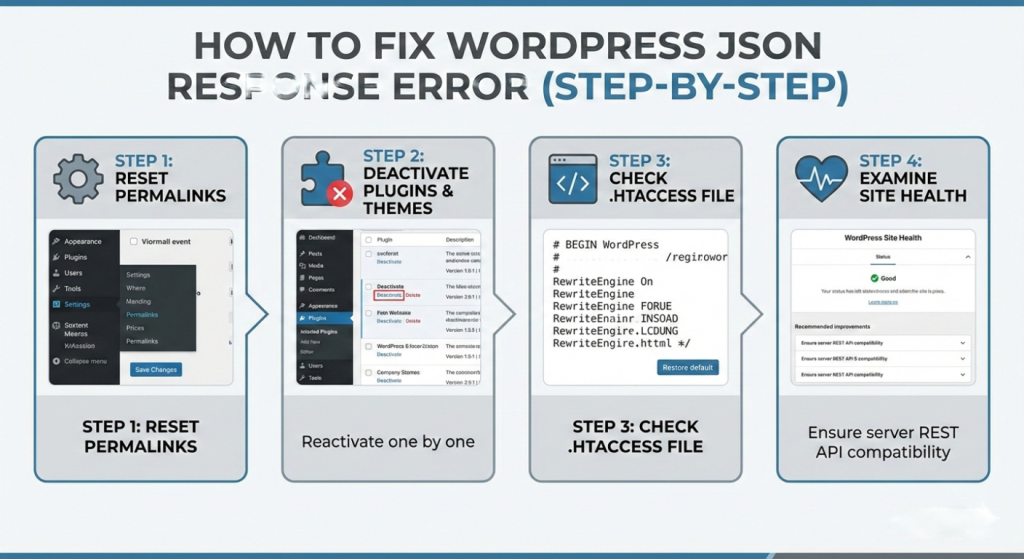
The WordPress JSON Response Error is a common issue that usually appears when saving posts, pages, or updating content in the WordPress block editor (Gutenberg). The error message often looks like this:
“The response is not a valid JSON response.”
While frustrating, this problem is not critical and can usually be fixed without advanced technical support. This guide explains why the error happens and provides clear, step-by-step solutions.
Understanding the “JSON Response” Error
Before we fix it, it helps to briefly understand what’s happening.
When you use the modern WordPress editor, it relies on something called the WordPress REST API in the background to save your changes. When you click “Update,” the editor sends a request to the server. The server is supposed to send back a specific format of data—called JSON—saying, “Got it, changes saved.”
The error occurs when your server sends back something else instead. It might send back an HTML error page, a security warning, or nothing at all. Because the editor didn’t get the JSON it expected, it throws up the red banner.
The good news? It’s almost always fixable without needing to hire a developer.
Crucial Step: Backup Your Site
Before making any changes to your site’s settings, plugins, or files, standard professional practice is to create a full backup.
If you are hosted withGotmyhostyou can easily take a manual backup via your hosting control panel (cPanel/DirectAdmin) or use a backup plugin like UpdraftPlus. Never skip this step when troubleshooting.
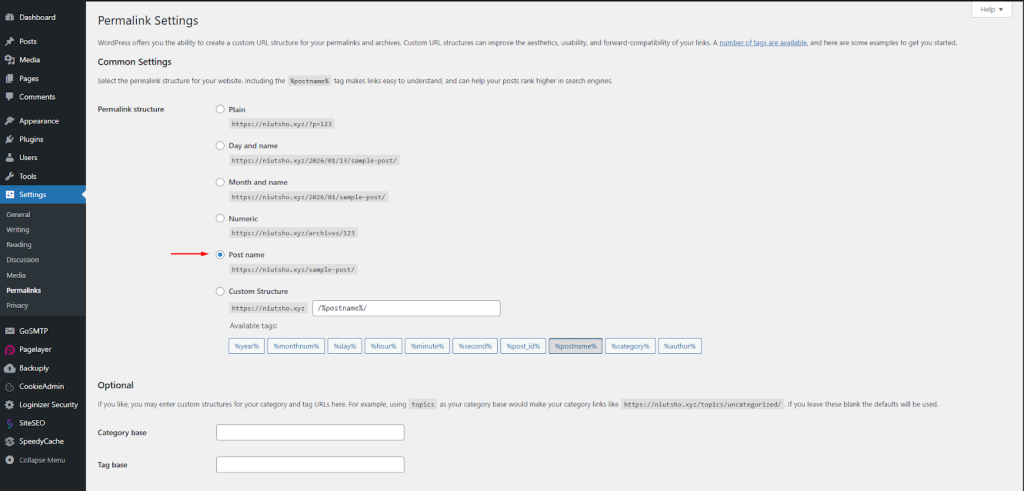
Step 1: Resave Your Permalinks (The Quickest Fix)
Surprisingly, the most common cause of the JSON error is a minor glitch in your WordPress “permalink structure”—the rules that determine your URL links. Sometimes these rules just need to be “flushed” or reset. This fixes the issue for about 70% of users.
How to do it:
- Log in to your WordPress Dashboard.
- In the left-hand menu, navigate to Settings > Permalinks.
- Scroll down to the very bottom of the page.
- Do not change any settings. Simply click the “Save Changes” button.
By clicking save, WordPress forces itself to regenerate its internal link-routing rules, which often clears up the communication block with the REST API. Try updating your page again. If it works, you’re done!
Step 2: Check Your Site URLs (SSL/HTTPS Issues)
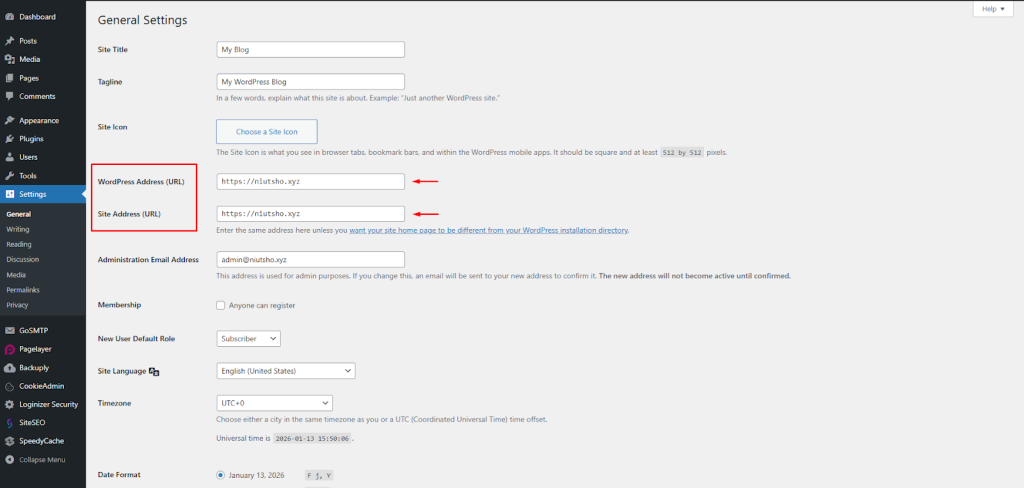
If you recently moved your site to HTTPS, or if you migrated your site to a new domain, your settings might be misconfigured. The REST API can fail if some parts of your site are trying to load over unsecure HTTP while others use secure HTTPS (this is called a “mixed content” error).
How to check:
- Go to Settings > General in your dashboard.
- Look at the WordPress Address (URL) and Site Address (URL) fields.
- Ensure both URLs are exactly the same and that both start with https:// (if you have an SSL certificate installed).
If one is http:// and the other is https://, correct them so they match and click save.
Step 3: Test for Plugin or Theme Conflicts
If permalinks and URL settings didn’t help, the next most likely culprit is a plugin interfering with the REST API. Security plugins, caching plugins, and optimization plugins are common suspects.
To test this, we need to isolate the issue.
How to do it:
- Go to Plugins > Installed Plugins.
- Click the Select All checkbox next to “Plugin”.
- From the “Bulk Actions” dropdown, select Deactivate, and click “Apply”.
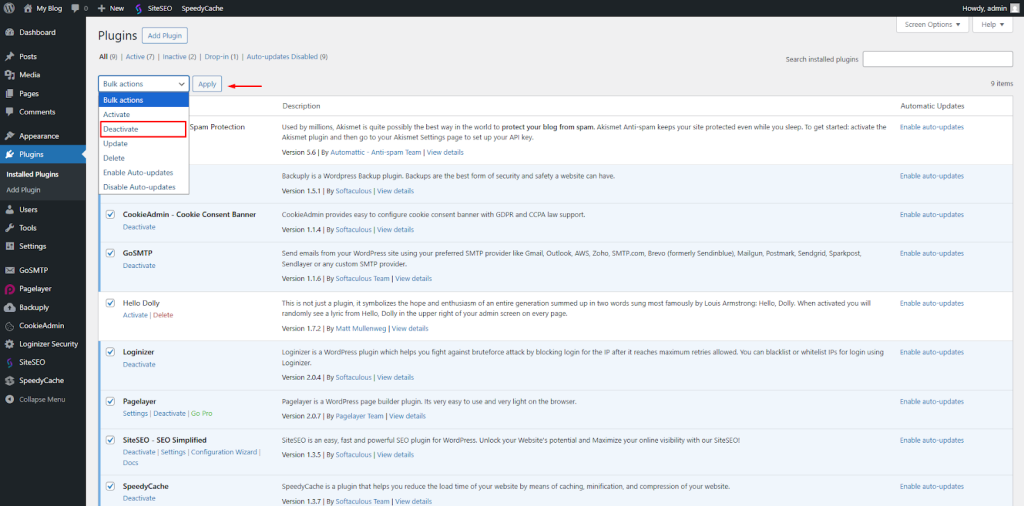
- Now, go back to your post and try to update it.
- If the error is gone: You know one of your plugins was causing it. Reactivate your plugins one by one, testing the post update after each activation, until you find the offender.
- If the error remains: It’s not your plugins. Re-activate them all and move to the next step.
Step 4: The Advanced Fix (The .htaccess File)
Warning: This step involves editing server files. Ensure you have your backup ready.
The .htaccess file is a powerful configuration file used by Apache web servers (which GotMyHost uses). It controls how your server directs traffic. If this file becomes corrupted, it breaks the REST API routing.
The easiest way to fix it is to force WordPress to generate a fresh one.
How to do it:
- Log in to yourGotmyhostcontrol panel (e.g., cPanel) and open the File Manager.
- Navigate to the public_html folder (or the root folder of your WordPress installation).
- Make sure you have “Show Hidden Files” (dotfiles) enabled in your File Manager settings so you can see files starting with a dot.
- Find the .htaccess file. Right-click it and select Rename. Change it to something like .htaccess_OLD.
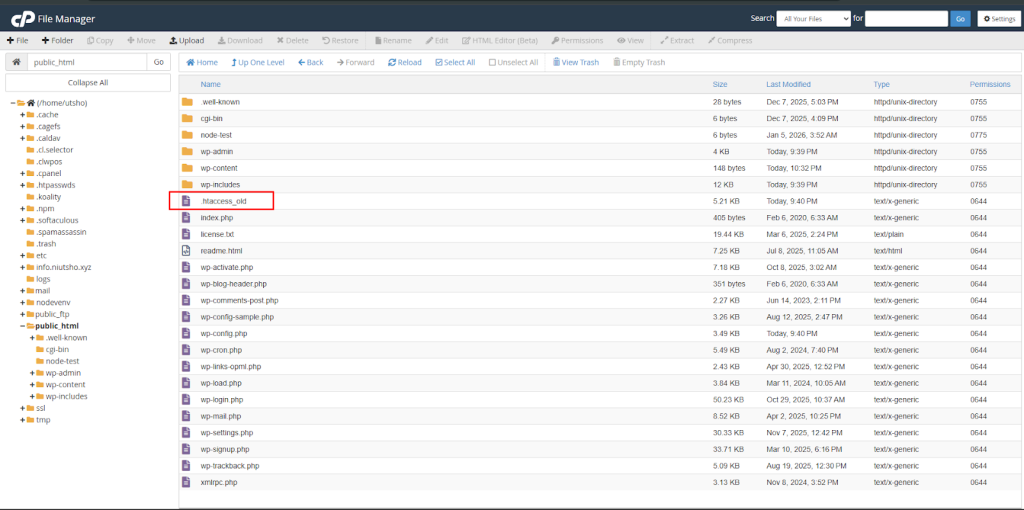
- Now, go back to your WordPress Dashboard, navigate to Settings > Permalinks, and just click “Save Changes”.
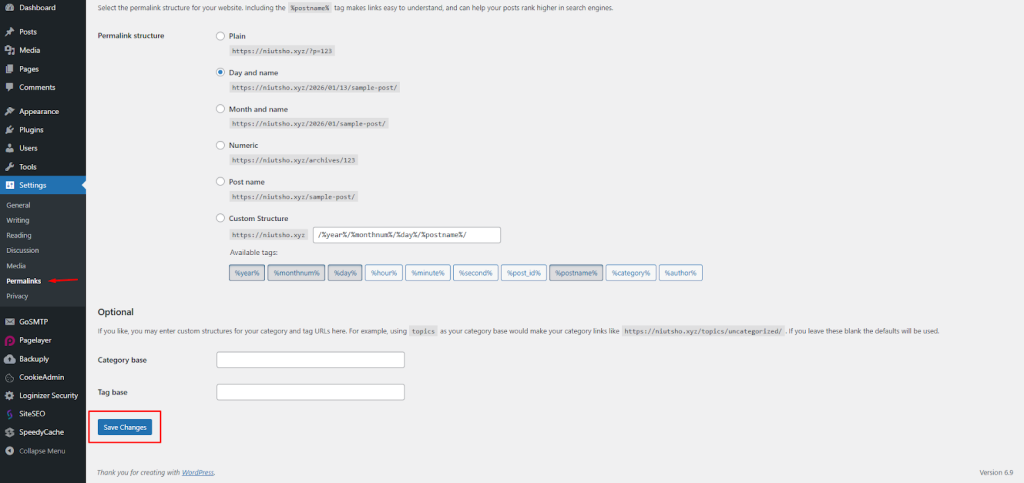
WordPress will look for the .htaccess file, see that it’s missing, and generate a brand new, clean version. Test your editor again.
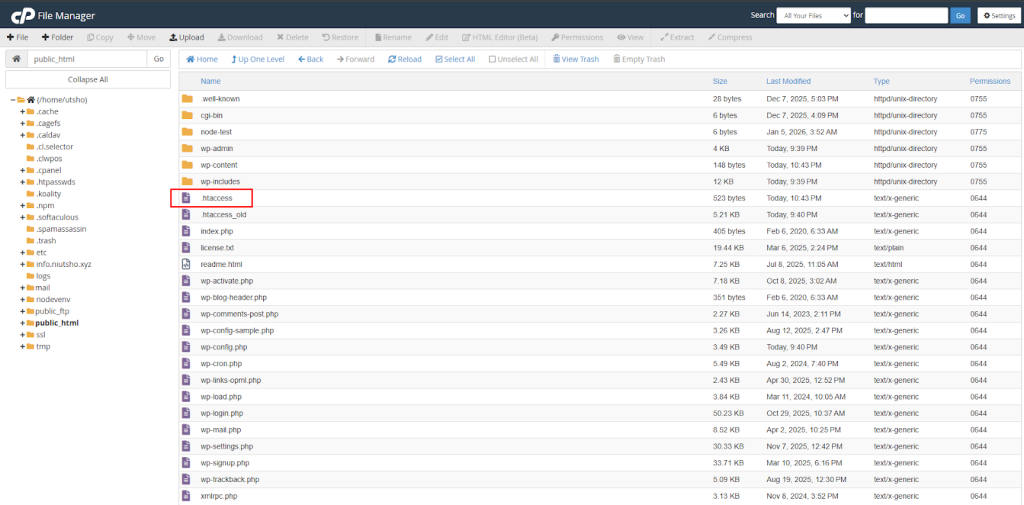
Step 5: View The REST API Debug Log
The invalid JSON response error can also mean that the WordPress REST API on your website encountered an error.
The REST API is the set of techniques WordPress uses to communicate with the web server as you work on your website.
You can see details of this error in the ‘WordPress Site Health’ tool. Simply visit the Tools » Site Health page.
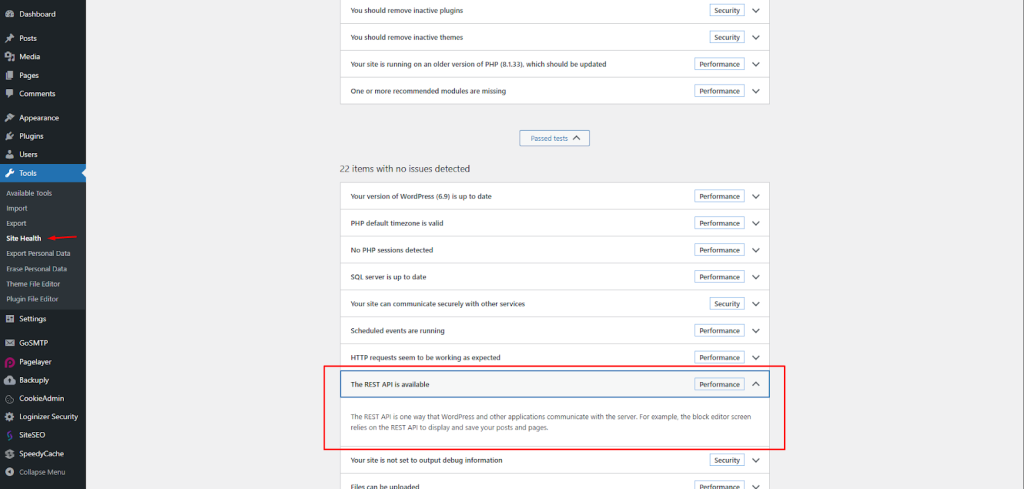
From here, you may see an issue labeled ‘The REST API encountered an unexpected result’.
Clicking on it will show you more details, which may give you some clues about which plugin or third-party service is causing the issue.
If this doesn’t provide any clues, then you can move on to the next step.
Step 6: Switch to a Default WordPress Theme
Third-party WordPress themes can sometimes introduce conflicts with the WordPress core or other plugins, especially if they’re not well-coded or maintained. These conflicts can show up in various ways, including invalid JSON errors.
By switching to a default theme, you’re essentially removing any custom code or functionalities introduced by your current theme.
This helps isolate whether the issue originates from the theme itself or something else in your WordPress setup.
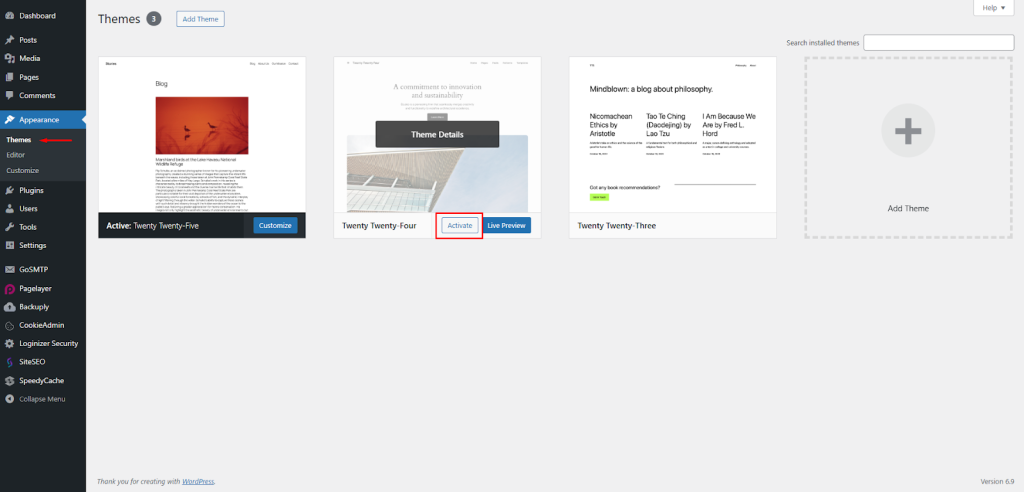
To do this, you’ll want to navigate to Appearance » Themes in your WordPress dashboard. Then, find a default theme like Twenty Twenty-Four or Twenty Twenty-Three and click “Activate”.
Step 7: Temporarily disable the security firewall
Firewalls protect your WordPress website from malicious attacks by blocking suspicious requests. However, they may also block legitimate requests from the WordPress editor for security reasons, causing errors like the invalid JSON response.
Temporarily disabling your security firewall can determine if it’s the source of the issue. Follow these steps:
- If you use a firewall plugin like Wordfence, Sucuri, or iThemes Security, deactivate it temporarily.
- Users with a web application firewall (WAF) like Cloudflare or AWS WAF can access the WAF website, open the settings, and temporarily disable or set it to “Learning Mode.”
- If your hosting provider has server-level firewalls, access the control panel and turn them off.
- Return to your WordPress editor and try saving or publishing the content. If the error has been resolved, you’ve identified the firewall as the cause.
- Re-enable the firewall and adjust its settings to allow valid requests without blocking them.
Step 8: Turn on Debugging in WordPress
WordPress has a built-in feature for keeping a log of errors. However, it is not enabled by default.
To turn it on, you need to add the following code to your wp-config.php file:
define( ‘WP_DEBUG’, true );
define( ‘WP_DEBUG_LOG’, true );
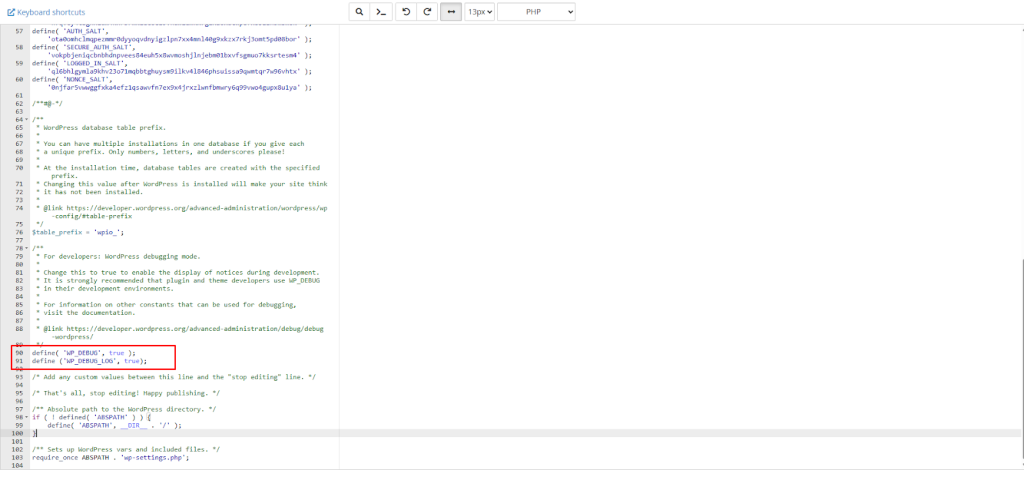
After that, WordPress will show all log errors. The error log may provide you with a clue about what is causing the invalid JSON error on your website.
Still Stuck? Let Gotmyhost Help.
The “Not a valid JSON response” error is incredibly frustrating because it stops your workflow dead in its tracks. While the steps above resolve the issue for 99% of users, sometimes server-side issues like PHP memory limits or ModSecurity rules are at play.
If you’ve tried this guide and are still seeing that red banner, don’t waste any more time struggling.
If your site is hosted with Gotmyhost, assistance is just a ticket away. Our expert support team deals with WordPress specific issues daily. Open a support ticket, mention that you are seeing the JSON error and have tried these steps, and we will investigate the server logs to find the exact cause for you.
Not with Gotmyhost yet?
Switch today for reliable, WordPress-optimized hosting where technical headaches are handled for you.
Related Topic : 4 Ways to Fix the WordPress MySQL Extension Error