
How to Clear Cache in WordPress
To Clear Cache in WordPress follow the steps: To manage your site cache you have to use plugins. There are many plugins in the plugin store, we will use the LiteSpeed Cache plugin here. 3. Click on Purge All And…

To Clear Cache in WordPress follow the steps: To manage your site cache you have to use plugins. There are many plugins in the plugin store, we will use the LiteSpeed Cache plugin here. 3. Click on Purge All And…
To Check your WordPress Version follow the steps: There are numerous ways to determine the WordPress version. Way – 1 Press Ctrl + U or click the right button of your mouse on your page and click on the “view…
To Manage WordPress User follow the steps: 2. Enter your Username, email, and first and last name (you can keep it empty), generate a password, select the role for the user, and click Add new user. 3. You can see…
To Add New WordPress User follow the steps: 3. Fill up all required information and select Role from the dropdown menu and click Add New User That’s it, adding a new WordPress User is done. if you face any issues…
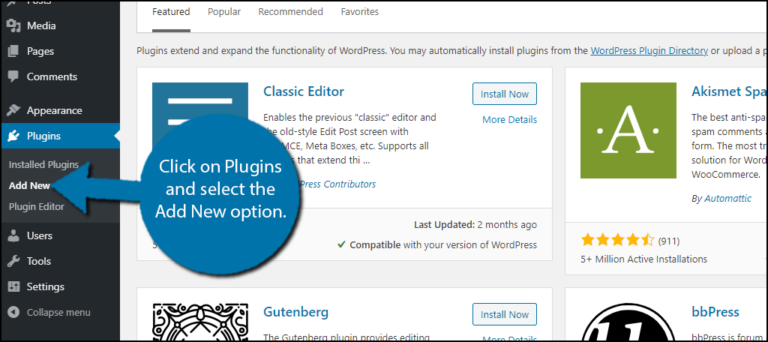
Use these steps to Install & Disable WordPress Plugins: 1. Log in to your WordPress 2.Hover on Plugins from the left side of the WordPress menu bar and click on Add new 3. You can select your desired plugins here…
1. Log in to cPanel to Remove WordPress from Softaculous. 2. Search Softaculous Apps Installer in your cPanel. 3. Click Installations to Remove WordPress from Softaculous 4. Locate the WordPress website and click on the delete Icon that you wish…
To create and set private name-servers: 1. Log into the Gotmyhost client area and go to domains to create and set private Nameservers: 2. Select the domain you want. 3. Go to private name servers. 4. Enter the name-server prefix…
1. Log into your Gmail account and go to settings for adding Web mail with Gmail. Login Into your Gmail 2. Go to Accounts and Import, go to Check email from other accounts, and click on Add an email account…